
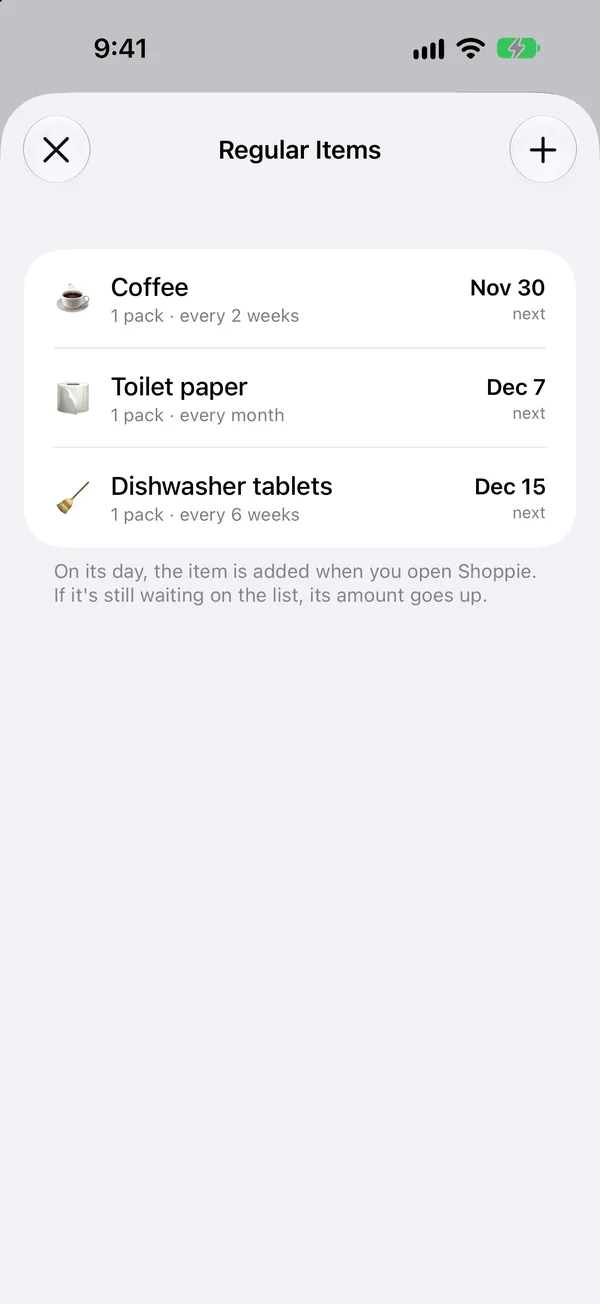
Some things you buy over and over: coffee, washing powder, dog food, water filters. Forget once and you run out. With regular items in Shoppie you don't need to remember when you last bought them – on the day you choose, they are added to your shopping list on their own.
What regular items do
- Add themselves to your list on the day you set.
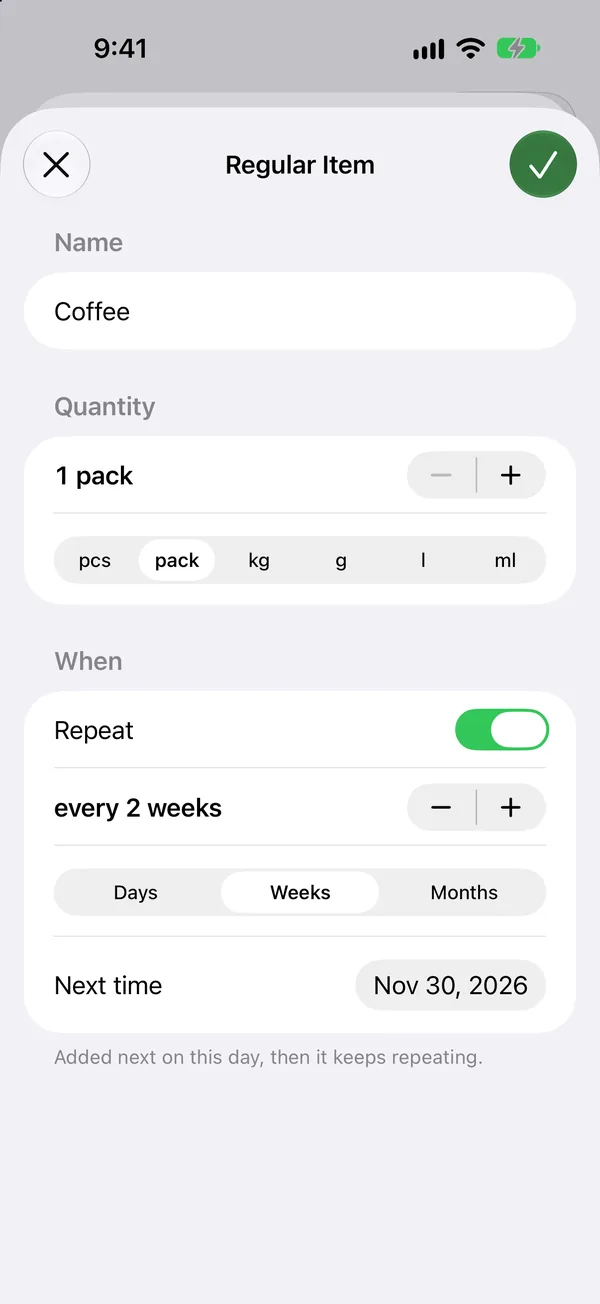
- Repeat on your schedule in days, weeks or months – for example every 2 weeks.
- Next time shows when the item will be added again.
- Can be paused with a swipe to the right, say while you're on holiday.
- Are shared with your household, so they show up on everyone's list.
How it works
- On the List tab, tap ⋯ at the top right and choose Regular Items. Or touch and hold an item on your list and choose Add Regularly.
- Tap + (Add Regular Item) and enter the item.
- Turn on Repeat and set how often (Days / Weeks / Months).
- Check the date under Next time. That's it – Shoppie does the rest.
For a step-by-step version with screenshots, see How to set up regular items.
Regular items vs. Suggestions
Shoppie has two ways to help you remember. Suggestions learn from your finished trips and work out what you're probably running low on. Regular items are a fixed plan: you know exactly when an item will appear on your list. For things with a steady rhythm, like pet medication or coffee pods, a recurring item is the safer bet.
A recurring list for the whole household
If you share a household through iCloud, every member can see and edit regular items. When an item is added on its day, it appears on everyone's list, so whoever is heading to the shop can pick it up. Changes show up straight away.
Pausing and turning it off
When you don't need an item for a while, swipe it to the right in your regular items to pause it. If you don't use the feature at all, turn it off in Settings → Features → Regular Items.
Tips
- Start with three or four things you run out of most often.
- Match the interval to how fast you really use something – if coffee lasts 3 weeks, set 3 weeks.
- Pause your regular items before a holiday so your list doesn't fill up for nothing.
- The quickest way to create one is straight from your list: touch and hold the item and choose Add Regularly.