
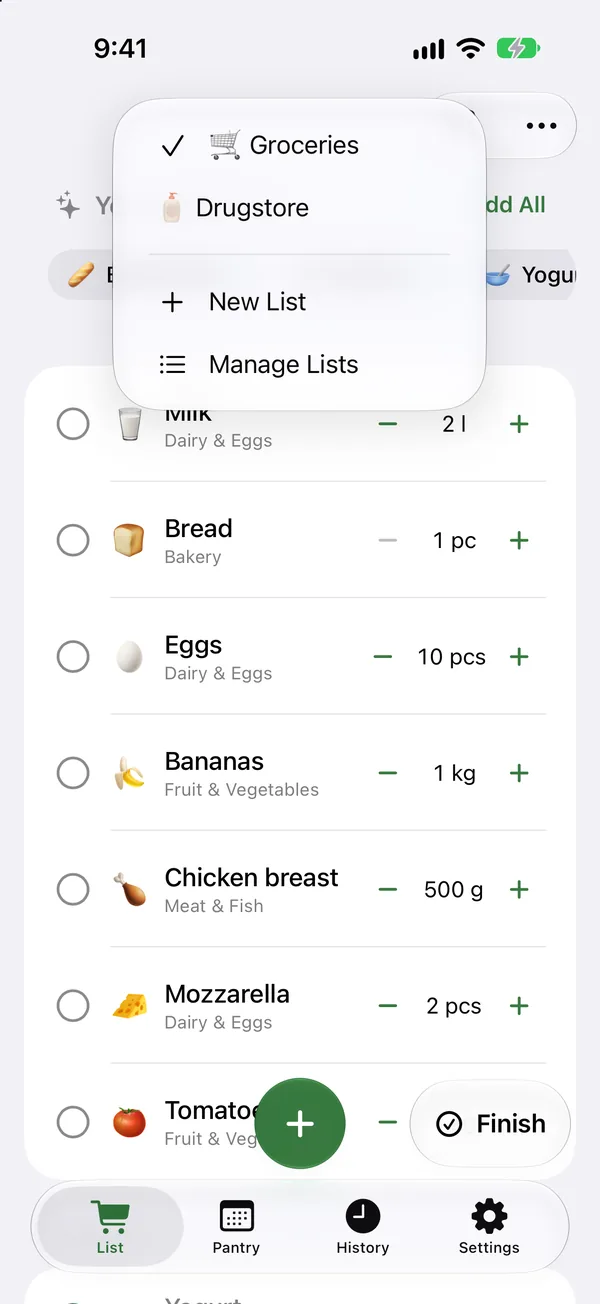
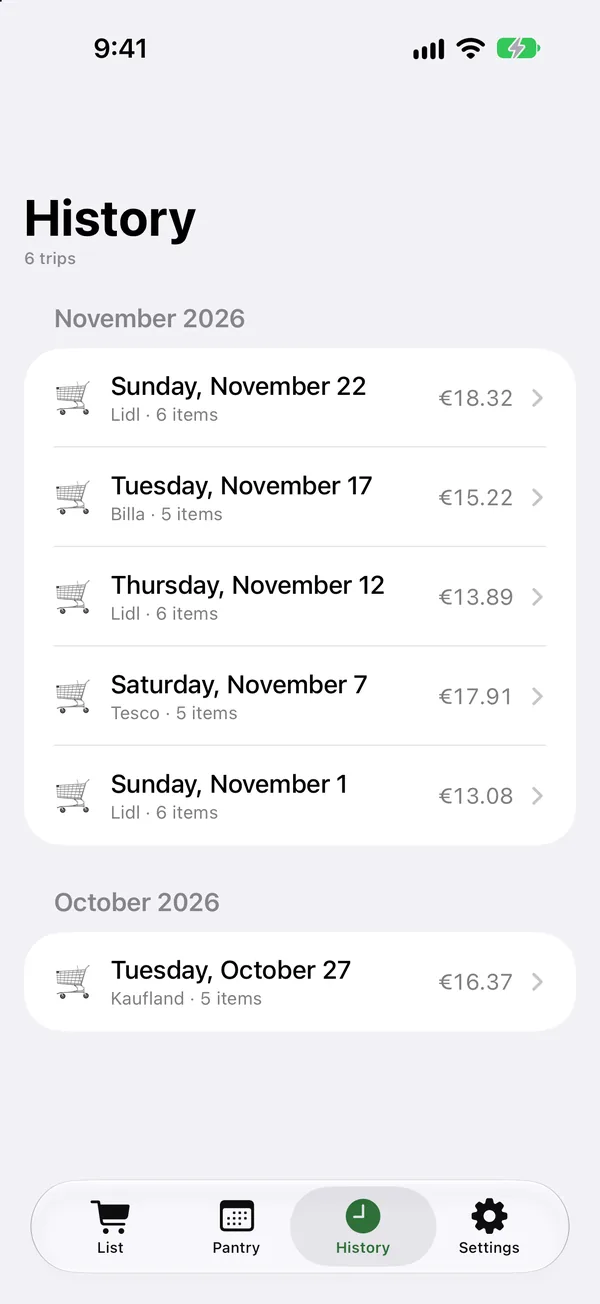
One list for everything fills up fast. That’s why Shoppie lets you create multiple shopping lists – for groceries, toiletries, a weekend away or a separate “Christmas” list – and switch between them with a single tap. When you finish a trip, it’s saved to History, so you always know what you bought last time.
Separate lists for different kinds of shopping
- Separate lists for groceries, toiletries, the cottage or Christmas.
- Your own name and icon for each list, so you can tell them apart at a glance.
- Switch by tapping the list name at the top of the List tab.
- In Manage Lists you can rename, reorder or delete them.
How it works
- At the top of the List tab, tap the list name (for example Groceries ˅).
- Tap New List, enter a Name and pick an Icon.
- Confirm with the green ✓ and add your items.
- Tick items off in the shop, then tap Finish → Finish Shopping.
For step-by-step versions with screenshots, see How to have more than one shopping list and How to finish shopping and find it in your history.
Shopping history: what you bought last time
When you finish a trip, ticked items are saved to History and removed from the list. The History tab shows every trip with the date, store and number of items. Open a trip and swipe an item to the right → Add to List. To bring back the whole trip, use Add All to List – handy when your weekly shop looks much the same.
Why finishing a trip pays off
A finished trip is more than a record. Shoppie learns from it what you buy and how often, and suggests what you’re probably running low on. If you scan the receipt, the trip is saved to History with prices, and food appears in Pantry with an estimated best-before date.
Lists and history for the whole household
If you share a household via iCloud, members see all lists and the shopping history, and changes show up straight away. One person can keep adding to the “Christmas” list while another does the grocery run – and both can see what’s already been bought.
Tips
- Start your “Christmas” list early and add to it as you go.
- Finish the trip right after paying so your History stays accurate.
- At least one list has to stay – you can’t delete the last one.