
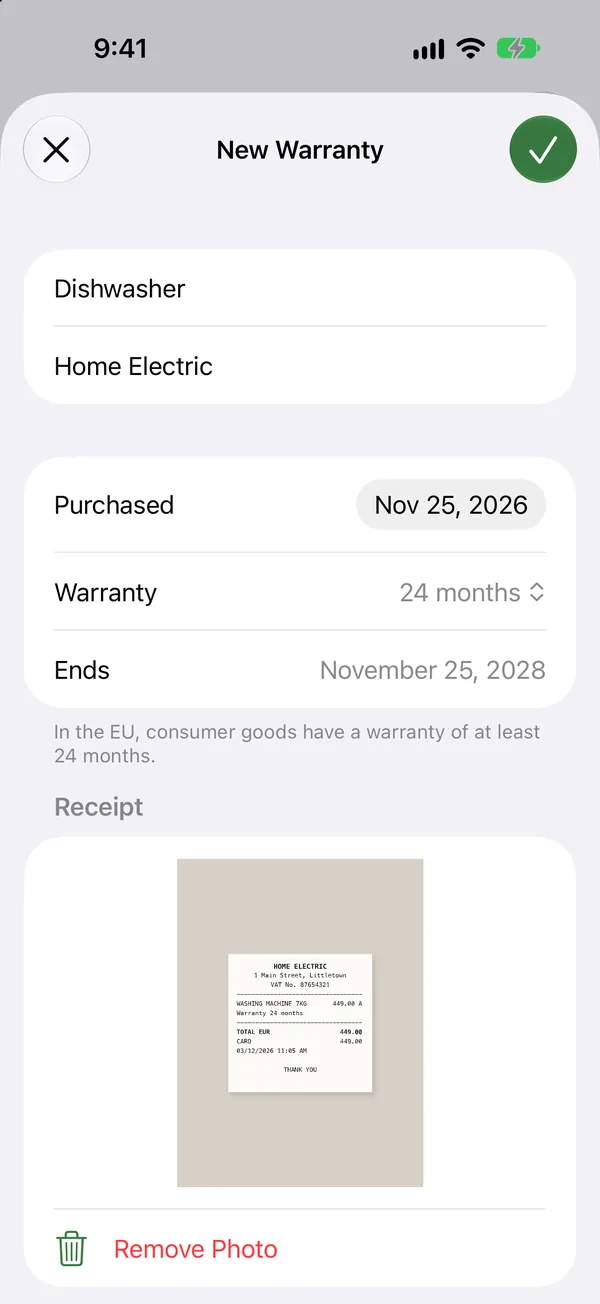
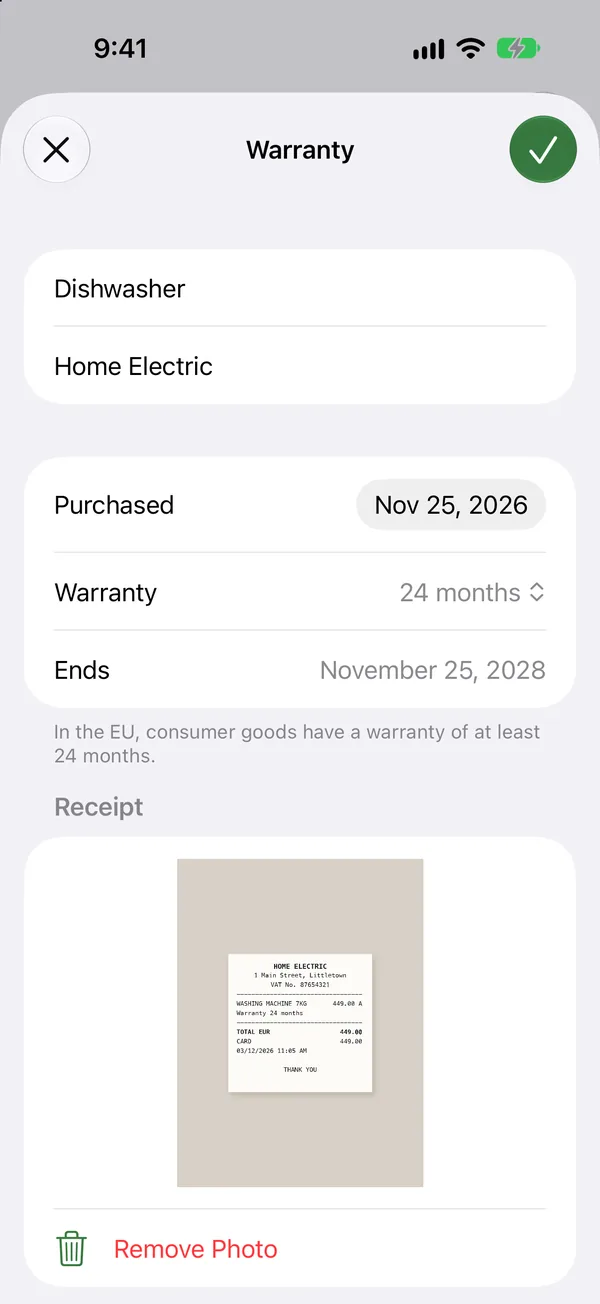
The washing machine stops spinning, one earbud goes quiet – and the receipt is nowhere to be found. Warranties in Shoppie keep your proof of purchase on your iPhone from the day you buy something, and Shoppie reminds you while you can still make a claim.
What the Warranties tab does
- Saves a warranty for anything you buy – product, store, purchase date and warranty length.
- Attaches a receipt photo from the camera or your photo library. Tap it to see it full screen.
- Reminds you before it ends, about a month (30 days) ahead.
- Can be hidden if you don't use it. Hiding it deletes nothing.
How it works
- Turn the tab on in Settings → Features → Warranties – a Warranties tab appears at the bottom.
- On the Warranties tab, tap +.
- In New Warranty, fill in the product, Store, Purchased date and Warranty length.
- Under Receipt, choose Take Photo or Choose from Library, then save with the green ✓.
For a step-by-step version with screenshots, see How to save a warranty with a receipt photo.
A reminder before the warranty ends
About 30 days before a warranty runs out, Shoppie sends you a notification at the time set in Settings → Notifications → Time. It works when notifications are allowed and Use-by reminders are on. That leaves you enough time to check the item and sort out a claim if something is wrong. In the EU, new goods come with a warranty of at least 24 months.
Private warranties, never shared
Even if you share a household through iCloud, your warranties and their photos stay yours. They are never shared with the rest of the household. The receipt photo lives only on your iPhone and in your private iCloud – Shoppie has no server.
Hiding the Warranties tab
The Warranties tab is hidden by default, so it stays out of the way for anyone who doesn't need it. Show or hide it with the Warranties switch in the Features section of Settings. When you turn it back on, all your warranties and reminders are still there. More in How to show or hide the Warranties tab.
Tips
- Save the warranty right after buying, while the receipt is still legible – thermal paper fades.
- Photograph the whole receipt in good light.
- For pricier things like electronics or appliances, check whether the store offers a longer warranty and enter the real length.
- Add the brand and model to the product name so you can find the right warranty quickly later.