
How to scan a receipt on iPhone
-
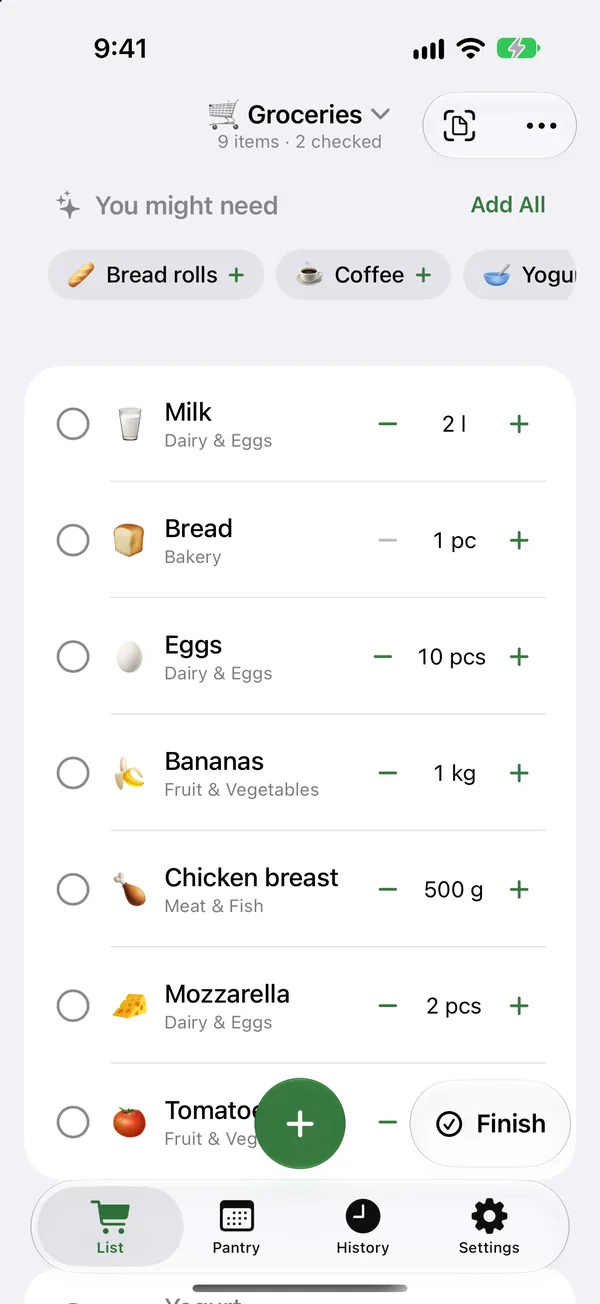
Step 1 Tap Scan Receipt
On the List tab, tap the Scan Receipt icon at the top right (next to ⋯).
-
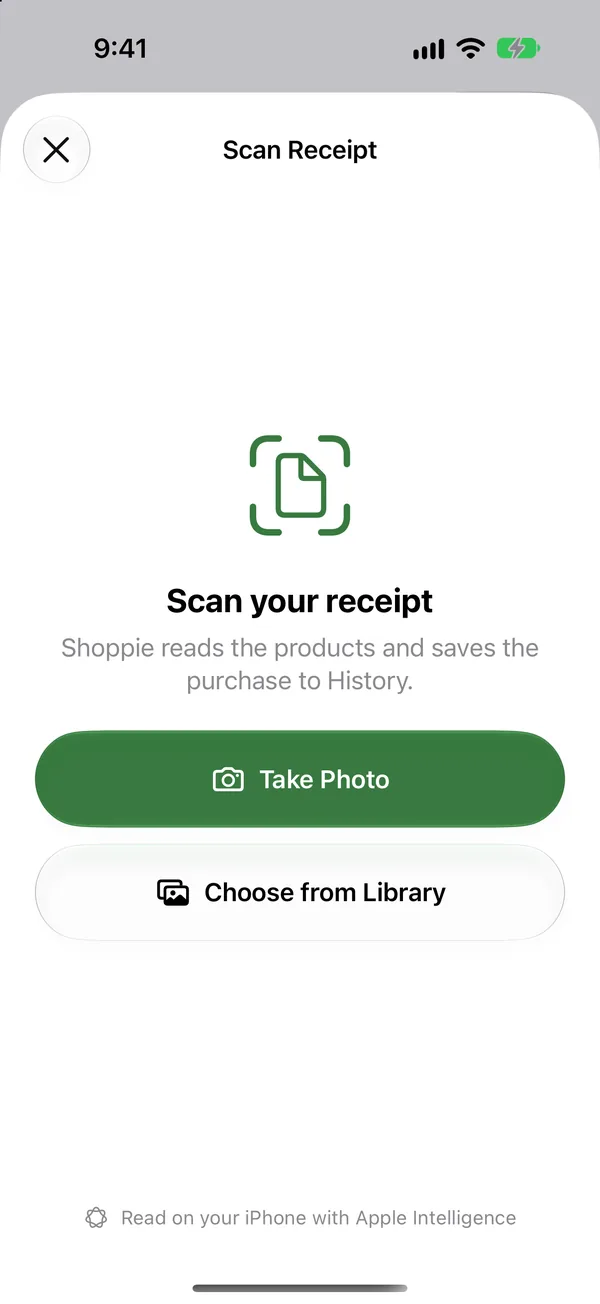
Step 2 Photograph the receipt
Choose Take Photo or Choose from Library. Flatten the receipt and photograph all of it.
-
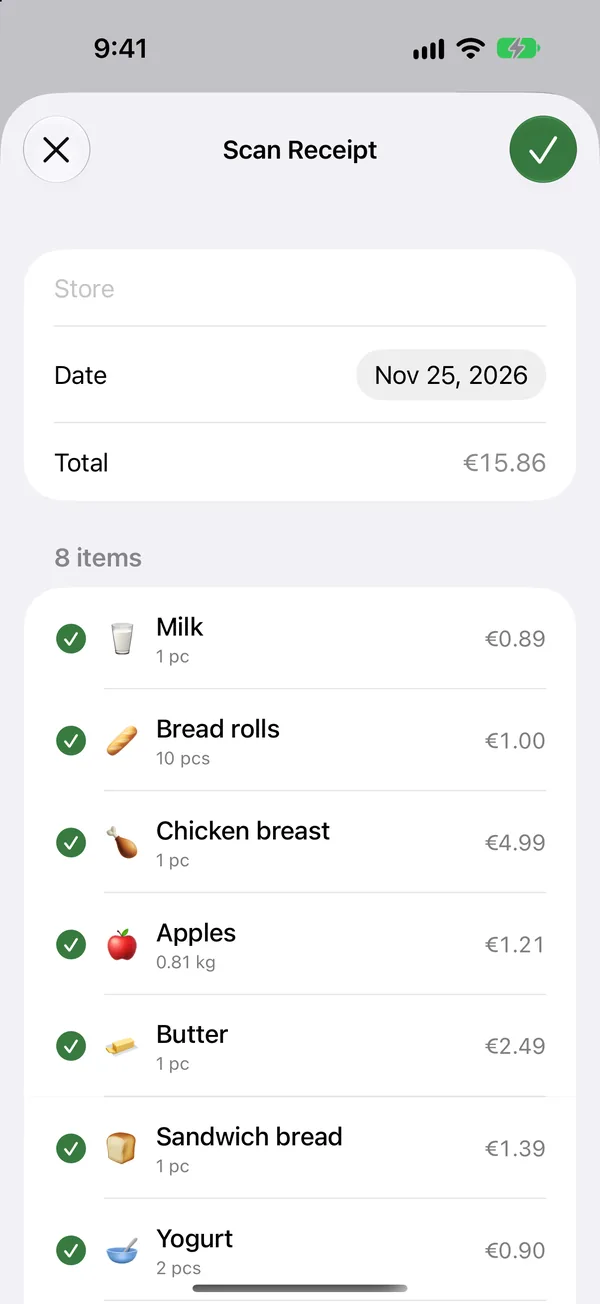
Step 3 Check and save
Shoppie shows the store, date, total and items with prices. Check the names and tap the green ✓ (Save). The trip goes to History and the food to Pantry. Turn on Remove bought items from the list to clear your list at the same time.
Frequently asked questions
Does scanning work offline?
Yes. The receipt is read on your iPhone and nothing is uploaded. On iPhones with Apple Intelligence, Apple’s on-device model also helps with product names.
Why are some names abbreviated?
Receipts use abbreviations. On iPhones without Apple Intelligence some may stay as printed, so check them before saving.
More questions are answered on the Support page.