
Shoppie for everyone: VoiceOver, larger text and Dark Mode
-
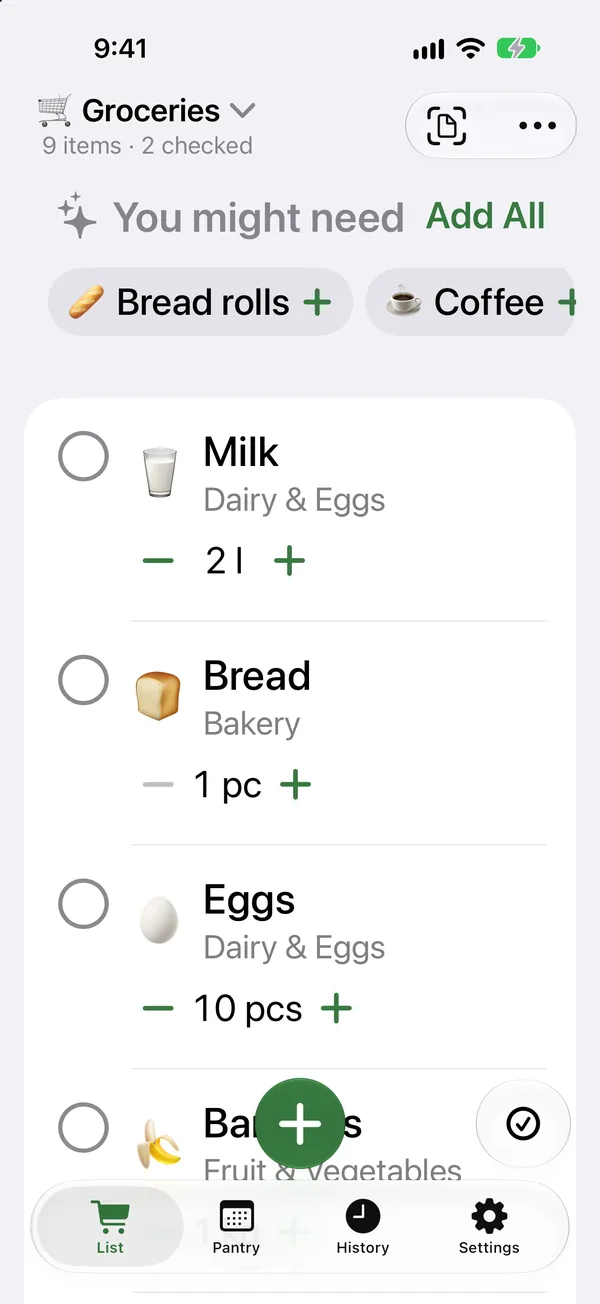
Step 1 Larger text
In iPhone Settings → Display & Brightness → Text Size, make the text bigger. Shoppie follows it.
-
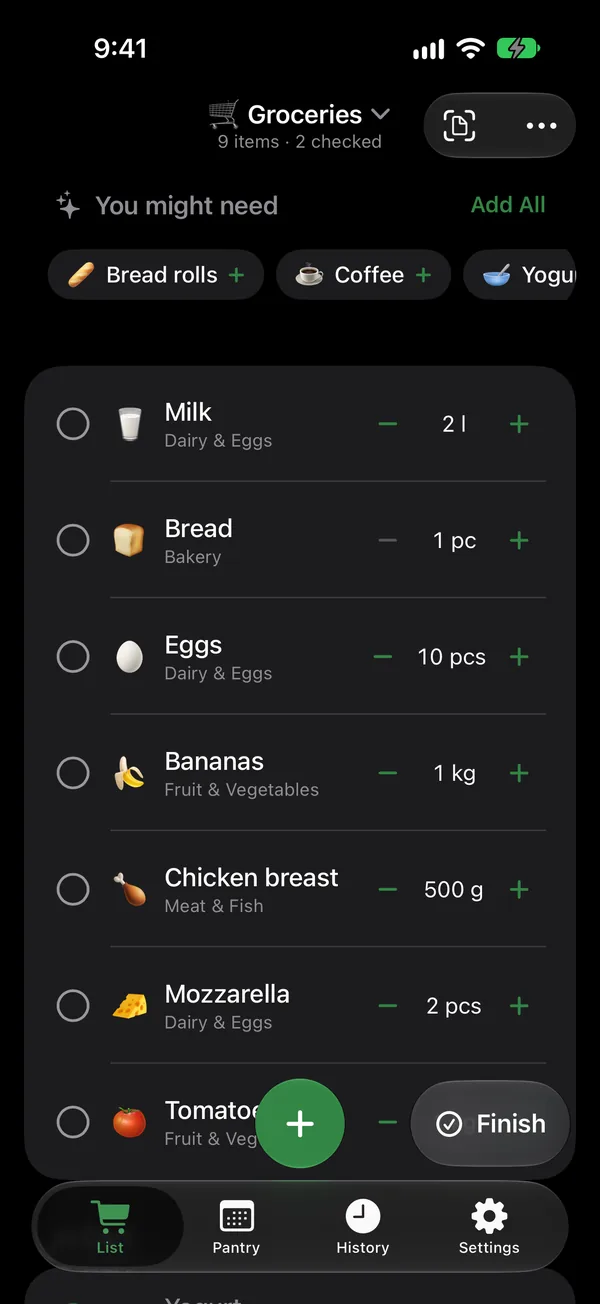
Step 2 Dark Mode
In iPhone Settings → Display & Brightness, choose Dark. Shoppie adapts.
-
Step 3 VoiceOver
In iPhone Settings → Accessibility → VoiceOver, turn on the screen reader. Items, buttons and suggestions in Shoppie are all labelled.
Frequently asked questions
Does Shoppie work in landscape?
Yes, Shoppie works in landscape and supports the foldable iPhone too.
Why is Finish just an icon with larger text?
To leave room for your items. The ✓ icon does the same, and holding it shows the label.
More questions are answered on the Support page.